
Separate the internet connection from the home network
A video call drops, a website stops loading and the DSL indicator on the FRITZ!Box flashes. A little later the connection works again, until the next interruption.
The router and internet provider are often suspected first. Another possible cause is easily overlooked: powerline adapters transferring network data through a building's electrical wiring. The FRITZ! manufacturer explicitly documents that powerline can affect VDSL connections. [1]
The distinction matters. The official information checked does not establish a new widespread FRITZ!Box outage. It describes a technical interaction that can cause substantial problems in unfavourable conditions. Powerline manufacturer devolo also documents interference. This does not mean every FRITZ!Box is affected or every disconnection is caused by powerline. [1] [2]
People experiencing problems need a comparison that separates the internet connection from their home network, not a blanket assignment of blame.
Why electrical wiring and telephone lines can interact
Powerline is also called PowerLAN or PLC. Adapters transmit network data using high-frequency signals over existing electrical wiring and make it available to devices at the other end. Powerline does not replace the internet connection; it provides a transmission route within the building. [3]
VDSL and powerline use partly overlapping frequency ranges, allowing their signals to interfere with each other. [1]
The electrical and telephone lines need not be directly connected. Devolo describes interference between nearby cables, both exposed leads and wiring within walls. It identifies VDSL profiles 17a and 35b, used for vectoring and supervectoring respectively. [2]
The cause may therefore lie in the combination of equipment, operation and cable routing. Buying a new router would not be my first step.
First establish whether DSL fails or only the computer connection
The internet is down describes the experience, not yet the cause.
FRITZ! documentation distinguishes loss of DSL synchronisation from other problems. Re-establishing the connection to the provider's equipment produces corresponding event entries. Line and cabling faults are other possible causes. [4]
For an initial assessment, I would distinguish these observations:
The FRITZ!Box records loss of DSL synchronisation and reconnects: investigate the DSL line and possible interference.
DSL remains connected but a computer connected through powerline loses access: first investigate the local powerline connection.
A computer connected directly by Ethernet works while only Wi-Fi devices fail: first investigate the wireless connection and Wi-Fi configuration.
This avoids changing the wrong part of the system. A slow speed test alone cannot establish whether the internet line or the route from the computer to the router is the bottleneck.
The key comparison: Remove powerline completely
I would prepare a manageable comparison while changing as few other conditions as possible.
1. Record the starting conditions
First note interruption times and the associated messages under System → Events. DSL connection values are also useful. The FRITZ! instructions likewise begin by checking the event log. [4]
Screenshots or brief notes are enough for initial documentation. What matters is being able to identify which change was made when.
I would not perform a factory reset or change several settings at once. That would make comparison unnecessarily difficult.
2. Unplug all your own powerline adapters
For a clear comparison, temporarily unplug every powerline adapter you own, not just the unit near the FRITZ!Box.
Disconnecting an Ethernet cable or disabling an additional Wi-Fi function does not clearly remove powerline from the test because the equipment remains powered. The powerline technology itself needs to be taken out of the comparison.
Agree the interruption with everyone affected beforehand. Keep the FRITZ!Box powered during observation. If its power supply uses an adapter's pass-through socket, plan the test accordingly.
Do not alter other people's adapters, circuit breakers or electrical installations.
3. Connect a computer directly to the FRITZ!Box
Connect the test computer directly to a FRITZ!Box LAN port with an Ethernet cable. The route must not still pass through a powerline adapter.
Temporarily disable Wi-Fi on the test computer so the connection being used is unambiguous.
This does not exclude every possible fault. It does separate two questions: does DSL remain stable without your powerline devices, and does direct access to the router work?
4. Observe the usual interruption periods
Fifteen trouble-free minutes tell you little if failures previously occurred only in the evening. Observe at least the periods and usage conditions in which the problem usually occurs.
If DSL interruptions disappear without powerline and return after a controlled restart of the adapters, that strongly suggests a connection. Perform a counter-test only if further interruptions are acceptable.
If problems persist with your adapters unplugged, the investigation is not finished. Other causes need consideration. This result does not prove that a neighbour is responsible.
Improvements that do not involve altering the installation
If the suspicion becomes stronger, first examine accessible cables and socket locations.
FRITZ! recommends plugging powerline adapters directly into wall sockets, avoiding tangled cables and keeping the DSL lead at least ten centimetres from electrical wiring and sockets. Trying a suitable socket further from the DSL connection may also help. [1]
This spacing is not a guarantee of interference-free operation. It is a practical measure to reduce possible interaction.
I would proceed sequentially: untangle and separate exposed cables first, then try another suitable socket. Observe after each change whether behaviour actually improves.
Do not open sockets, distribution boards or permanently wired connections. Work on fixed electrical installations belongs with qualified professionals. Homemade filters or modifications to protective conductors are not appropriate troubleshooting.
Check firmware and VDSL compatibility
Supported equipment may benefit from firmware updates and dedicated VDSL compatibility functions. Devolo describes automatic adjustments for certain Magic configurations and manual options for supported dLAN adapters. Support depends on the model and router. [2]
I would not interpret this as a general guarantee that any update resolves every problem.
Before a manual adjustment, identify the actual VDSL profile. Depending on the router, it can be found in the interface or obtained from the provider. Devolo advises applying relevant settings individually to supported adapters. [2]
I would not infer the profile solely from the advertised connection speed or blindly follow instructions for another adapter model.
Use the FRITZ!Box's supported tools
Depending on the model and FRITZ!OS version, Internet → DSL Information → Interference Resistance includes a function for detecting and resolving interference. The manufacturer's instructions describe supported detection and optimisation for powerline effects. Menu wording varies between languages and versions. [1]
Its presence does not establish that every third-party powerline device can be detected or controlled. If the function is absent, consult instructions for the actual FRITZ!Box model.
Give stability more weight, carefully
The general FRITZ! instructions also describe gradually adjusting the target signal-to-noise margin towards greater stability. Achievable data rates may fall. An excessive adjustment can even prevent the DSL connection from being established. [4]
Record the original values, change only one step and observe the result. Revert the change if performance deteriorates.
For me, this is an additional measure, not a substitute for finding avoidable interference.
When a different connection is preferable
If powerline repeatedly causes problems despite suitable adjustments, I would not keep pursuing the same solution indefinitely.
For a fixed workstation, I would prefer a direct Ethernet connection. A distant room can use an access point connected to the router by Ethernet. FRITZ! calls this a LAN bridge on suitable repeaters. [5]
Where cable installation is impractical, consider a Wi-Fi connection through a suitably positioned repeater. Suitable FRITZ!Repeaters can connect to the router by Wi-Fi or LAN. [5]
A Wi-Fi repeater plugged into a socket for power is not automatically a powerline adapter. What matters is whether data travels by radio, Ethernet or electrical wiring. The power supply alone does not establish this. [3] [5]
Mesh alone would not be a selection criterion for me. Before switching, understand the new solution's actual transmission route.
If your own powerline equipment is not the cause
If DSL remains unstable in the prepared test, contact the internet provider with an understandable description.
Include the router model, firmware version, interruption times and corresponding event messages. It is particularly helpful to specify the period during which all your powerline adapters were unplugged and a direct LAN connection was used.
Internet sometimes fails leaves much unanswered. A documented comparison makes clear what has already been examined.
If there are indications of external electromagnetic interference, Germany's Federal Network Agency may also be an appropriate contact. It explains how unwanted emissions and interference are investigated. Whether investigation is possible and necessary must be determined in the particular case. [6]
I would not use this to accuse a neighbour or manufacturer. An interference source must be established, not guessed out of frustration at the next interruption.
My conclusion: Narrow the cause before changing things
Powerline can conveniently connect rooms without additional network cabling. With a sensitive VDSL line, however, the combination deserves investigation rather than blaming every interruption on the router.
My first step would not be a purchase: save events, temporarily unplug all your own powerline adapters and compare using a direct router connection. Then decide on evidence whether cable spacing, supported settings or a different transmission route are appropriate.
A stable connection matters more than the highest number on the packaging. What counts is reliable operation in your own environment.
Scope and safety
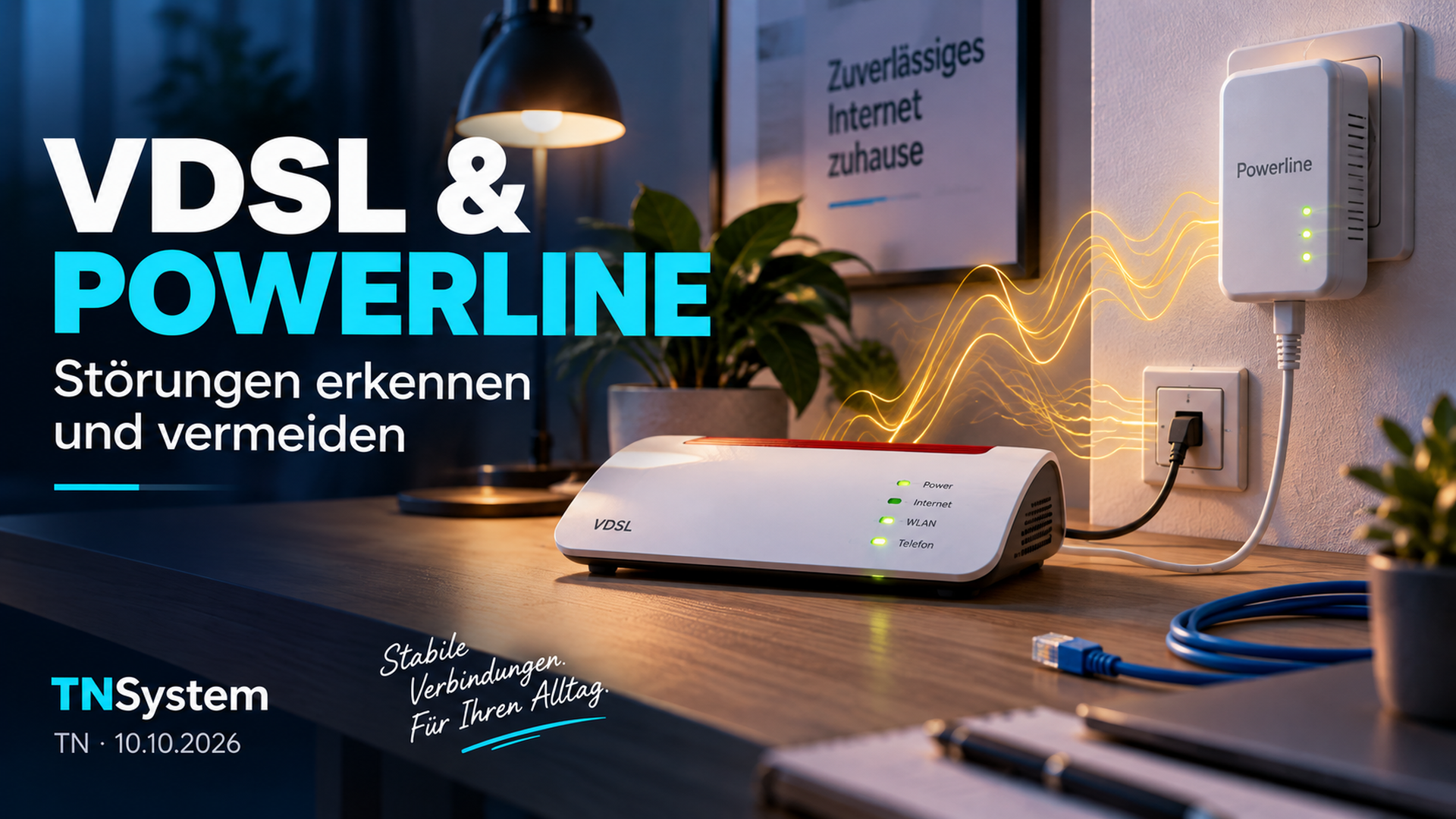
Research date: 10 October 2026. General guidance, not an individual line diagnosis. Menus and functions depend on model and software. Check only your own plug-in equipment and accessible cables; do not alter fixed wiring, circuit breakers or protective conductors. The illustration is symbolic, not an installation plan. Manufacturer knowledge bases were checked through available original text and indexed manufacturer content; access dates are not publication dates.
Sources and further reading
Original sources checked on 10 October 2026. Source [5] pairs the LAN instructions with the manufacturer product information instead of an externally hosted manual copy.
Manufacturer or authority source
Read source ↗
Manufacturer or authority source
Read source ↗
Manufacturer or authority source
Read source ↗
Manufacturer or authority source
Read source ↗
Manufacturer or authority source
Read source ↗
Manufacturer or authority source
Read source ↗
Manufacturer or authority source
Read source ↗